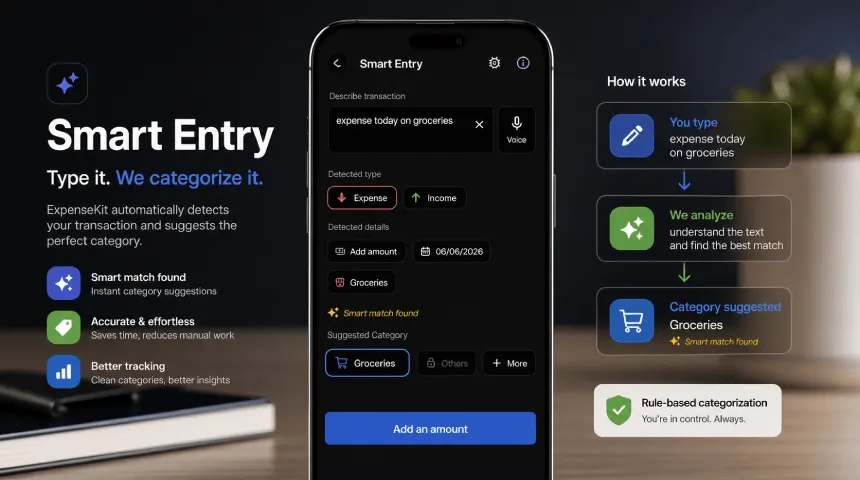
Automatic Expense Categorization Guide
Automatic expense categorization sorts your transactions into budget categories for you. Instead of opening every expense and tagging it by hand, your expense tracker can recognize text patterns like supermarket purchases, fuel payments, rent, subscriptions, and loan payments.
For busy professionals, this saves a lot of repeat work. Manual tagging is useful for one-off spending, but automatic categorization is better for daily transactions that follow the same pattern every week or month.
How automatic expense categorization works
Automatic expense categorization works by looking at details in a transaction, then matching those details to a category. Common signals include merchant name, transaction description, note text, amount, account, payment method, and repeat timing.
Built-in pattern matching uses a curated set of merchant and keyword signals to make a first guess, without you writing any rules. For example, a transaction mentioning “Starbucks” is recognized as Food and Dining automatically, the same way common rent, fuel, grocery, and subscription merchants get a starting category out of the box.
Merchant learning adapts to your own habits. The first time you categorize a merchant, ExpenseKit remembers it. Categorize that same merchant the same way a second time, and ExpenseKit applies that category automatically on future entries or imports, without any setup.
Both work together. Built-in patterns give you a sensible starting category immediately. Merchant learning takes over for the specific merchants and habits unique to your spending, so your categorization gets more accurate the more you use the app. There is no separate rule-builder screen to configure — categorization improves from how you actually categorize.
Manual vs. automatic: which should you use?
| Factor | Manual categorization | Automatic categorization |
|---|---|---|
| Speed | Slower because every transaction needs review | Faster because built-in patterns and merchant learning suggest a category automatically |
| Accuracy | High when you enter details carefully | High for merchants you’ve categorized before; new or unfamiliar merchants may need review |
| Customization | Full control over every transaction | Limited to correcting a suggested category, which ExpenseKit then remembers for that merchant |
| Best for | Cash spending, special purchases, and detailed notes | Recurring bills, subscriptions, groceries, transport, and daily card spending |
How automatic categorization improves in ExpenseKit
-
Add or import transactions. Open ExpenseKit and enter expenses manually, use smart entry, or import supported transaction files. Clear merchant names, notes, and descriptions help built-in patterns match correctly.
-
Categorize new merchants once. The first time a merchant appears, pick the category yourself if the built-in pattern doesn’t already cover it.
-
Categorize it the same way a second time. ExpenseKit’s merchant learning notices the repeat and remembers your choice for that merchant.
-
Let future entries auto-fill. The next time that merchant appears, in manual entry or import, ExpenseKit applies the learned category automatically.
-
Review occasionally. If a merchant’s spending purpose changes, re-categorize it consistently going forward so the learned category stays accurate.
Tips for cleaner automated expense categorization
Start with your most predictable transactions first. Rent, salary, insurance, subscriptions, loan payments, and utilities are usually easy for merchant learning to pick up because they repeat with similar names and amounts.
Use broad categories before creating tiny ones. For example, start with Food and Dining, then split Groceries and Restaurants later if you need more detail.
Review uncategorized transactions once a week. Automation reduces manual work, but a quick review keeps reports accurate and catches new merchants.
Categorize each merchant consistently. If “Amazon” is sometimes Shopping and sometimes Household, merchant learning has nothing stable to learn from — pick one category per merchant, or split unclear purchases into a more specific merchant note.
FAQ
What should I use to auto-categorize expenses?
Use a personal finance app with built-in category patterns, merchant learning, import or fast-entry tools, and a review screen. ExpenseKit is built for this workflow: it suggests a category from built-in patterns, then remembers your merchants after you categorize them consistently.
What are the best expense management tools for automatic categorization?
The best expense management tools for automatic categorization should support built-in category patterns, merchant learning, custom categories, transaction review, budgets, and reports. Choose a tool that lets you correct categories easily and remembers the correction.
What is automated expense categorization?
Automated expense categorization is the process of sorting transactions into categories with software. It can use built-in keyword patterns, learned merchant history, or both to place transactions under categories like Groceries, Transport, Bills, Dining, and Debt Payments.
How do I categorize expenses automatically?
Categorize new merchants once, then categorize them the same way a second time. ExpenseKit’s merchant learning remembers the pattern and applies that category automatically the next time the merchant appears, on top of built-in category patterns for common merchants.
Ready to spend less time sorting transactions?
Automatic categorization works best when your category system is clear first. Read the main guide on how to categorize expenses to choose better categories before letting ExpenseKit’s merchant learning take over.